Hi — I'm Stacy Braiuca, the Squirrel Wrangler™. If you were invited to a GoBrunch meeting and you're wondering how to get in, relax: I’ve got you. In my original presentation I walk you through every click, permission, and tiny decision so you can join smoothly, feel confident, and start connecting right away. This guide expands on that walk-through with clear steps, screenshots, practical tips, troubleshooting, and etiquette so your first (or fiftieth) GoBrunch experience feels effortless.
Below you'll find a complete, step-by-step guide to joining a GoBrunch meeting, screenshots taken at key moments (so you know what to expect), and helpful tips I use when hosting. Whether you're on a phone or a computer, this will get you into the room and chatting like a pro.
Table of Contents
- 📨 Getting Started — Click the Invitation Link
- 🌐 No Downloads Needed — Works Right in Your Browser
- 🧑🎤 Set Your Display Name and Pick an Avatar
- 🎥🎙️ Give Camera & Microphone Permissions — Click Allow
- 💡 Pre-Join Check — Lighting & Mic Test
- 🔑 Entering the Room — Tap Anywhere to Join
- 🪑 Moving Around — Avatars, Bubbles, and Proximity Audio
- 🛠️ Controls at the Bottom — Mute, Camera, Mic Test
- 📷 Circle Cam vs. Cam — What’s the Difference?
- ⚙️ Room Setup Variations — What the Host Controls
- ☕ Etiquette & Best Practices — How to Make the Most of GoBrunch
- 🩺 Troubleshooting — Common Problems and Quick Fixes
- 🔁 Quick Step-by-Step Summary
- 📣 Join Me for Coffee — Events & Resources
- ❓ FAQ — Frequently Asked Questions
- 🤝 Final Thoughts — Get In, Explore, Connect
📨 Getting Started — Click the Invitation Link
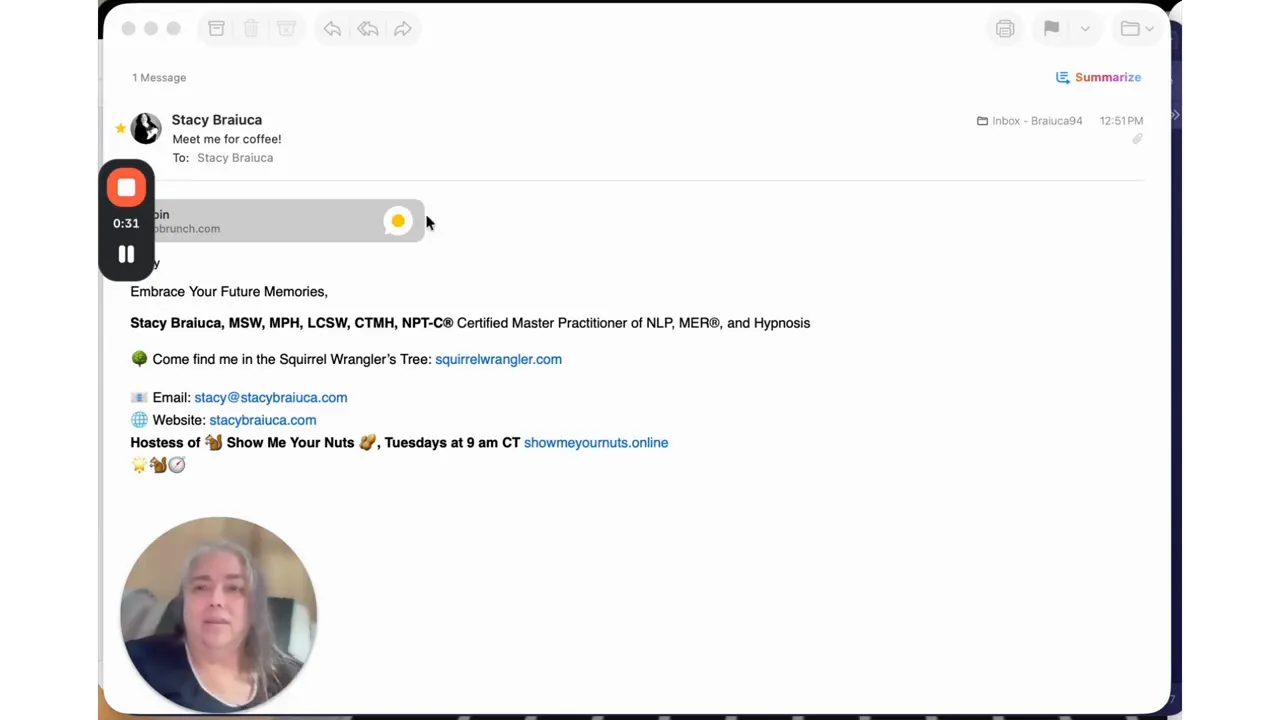
First things first: find the invitation email. The message you received will contain the meeting link — click it. The link might look like one of several possibilities depending on who invited you:
- gobrunch.com
- stacybraiuca.com/office (if I invited you)
- squirrelwrangler.com
- quantumquaff.com
One easy visual cue: if your invitation email includes a little egg icon, that means you were invited to a GoBrunch meeting. Click that link and your browser will open the GoBrunch room. No guesswork, no custom client to install — just follow the link and you’re underway.
🌐 No Downloads Needed — Works Right in Your Browser
One of the best things about GoBrunch is that it runs directly in your web browser. You do not need to download an app or install software. Open the link on a computer or a phone and GoBrunch loads. If you’re on a phone, you might find it helpful to turn the phone sideways (landscape) so the interface displays more clearly, but the experience is fully functional on either device.
Why this matters:
- Lower friction: people join faster, and last-minute attendees don’t get stuck installing software.
- Works across devices: Windows, macOS, Linux, Android, and iOS browsers are all supported.
- Security and updates: the host’s room updates on the server side, so you always access the latest environment without managing versions locally.
🧑🎤 Set Your Display Name and Pick an Avatar
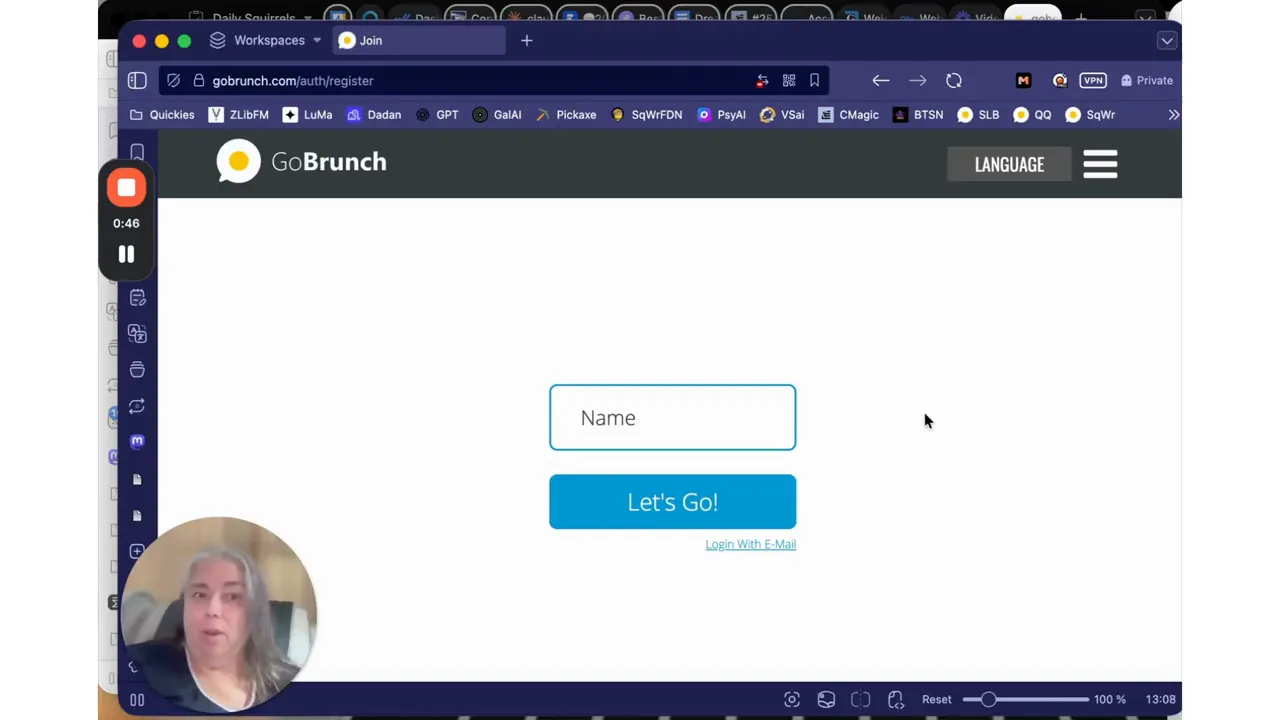
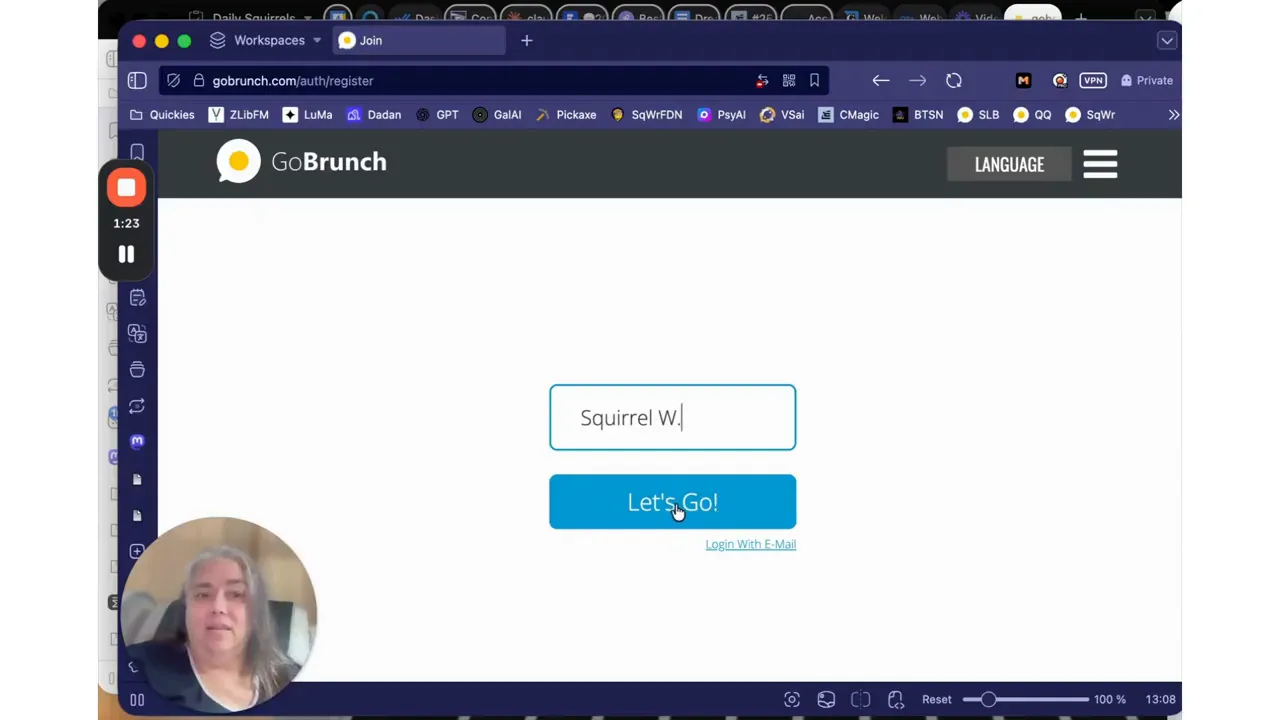
After the room opens, you’ll see a screen that asks you to enter the name you'd like others to see. Type what you want — this is what appears next to your avatar during the session. I often use playful aliases like “Squirrel W.” when demonstrating, but your real name works great for professional meetups.
Next, you'll select an avatar. There are two easy options:
- Choose one of the pre-made avatars provided in GoBrunch.
- Click the little camera icon and upload/select your own image to represent you in the room.
Having a recognizable avatar helps people find you in the virtual room and makes small talk easier. If you choose a photo of yourself, make sure it's clear and friendly.
🎥🎙️ Give Camera & Microphone Permissions — Click Allow
After choosing your name and avatar, your browser will likely prompt you to allow access to your camera and microphone. When you see that system dialog, click Allow. Without these permissions you may still enter the room, but you won’t be able to be heard or seen — and the whole point of GoBrunch is connection.
Quick tips:
- If you accidentally block access, you can change it in your browser settings (look for camera/microphone permissions for the site).
- Granting permission is secure: the browser handles the permission dialog and you control access per site.
- If you prefer to join without camera or mic initially, you can still enter and enable them later — many rooms allow toggling on the fly.
💡 Pre-Join Check — Lighting & Mic Test
Before you join the room fully, take a moment to check your lighting and microphone. You'll usually see a preview of yourself and, importantly, sound waves or a meter that shows whether your mic is picking up audio. If you see the sound waves moving when you speak, your mic is working.
Simple checklist to run through:
- Are you well lit? Face a window or a lamp so your face is visible.
- Is your microphone picking up your voice? Speak at normal volume and watch the audio meter.
- If you have headphones with a built-in mic, consider using them to reduce echo and feedback.
- Close unnecessary tabs or apps that might use the mic or camera.
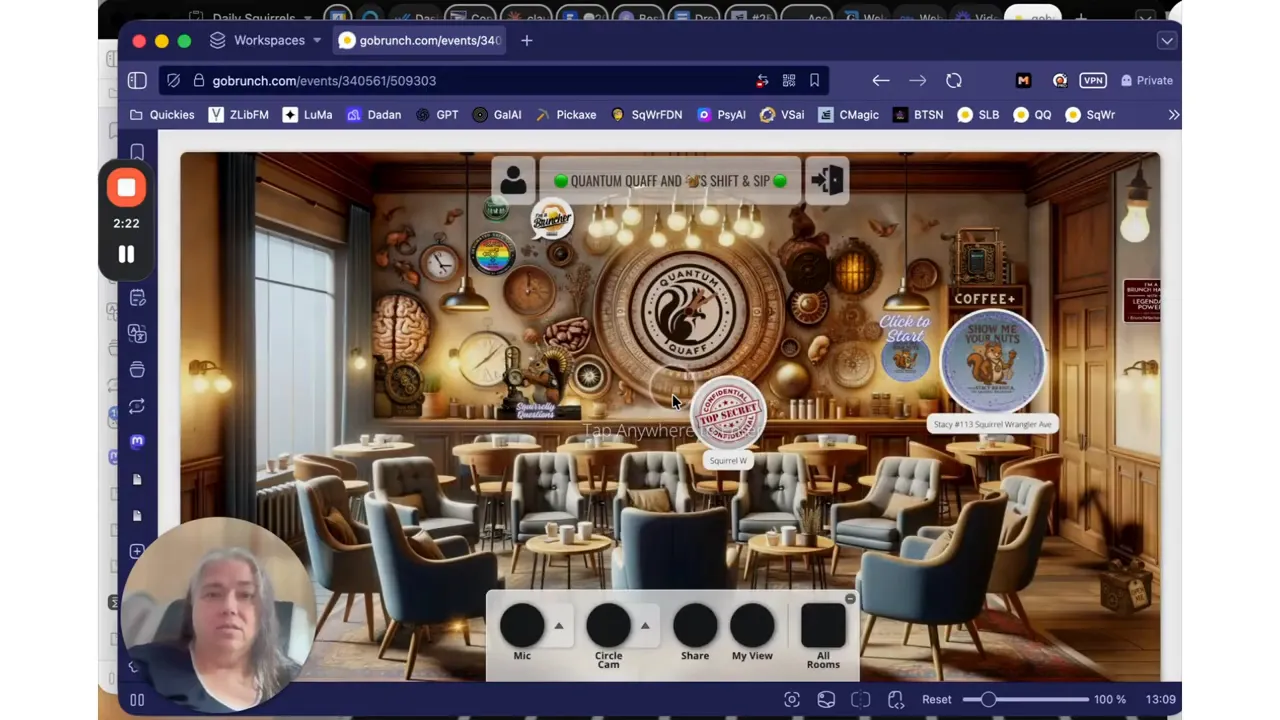
🔑 Entering the Room — Tap Anywhere to Join
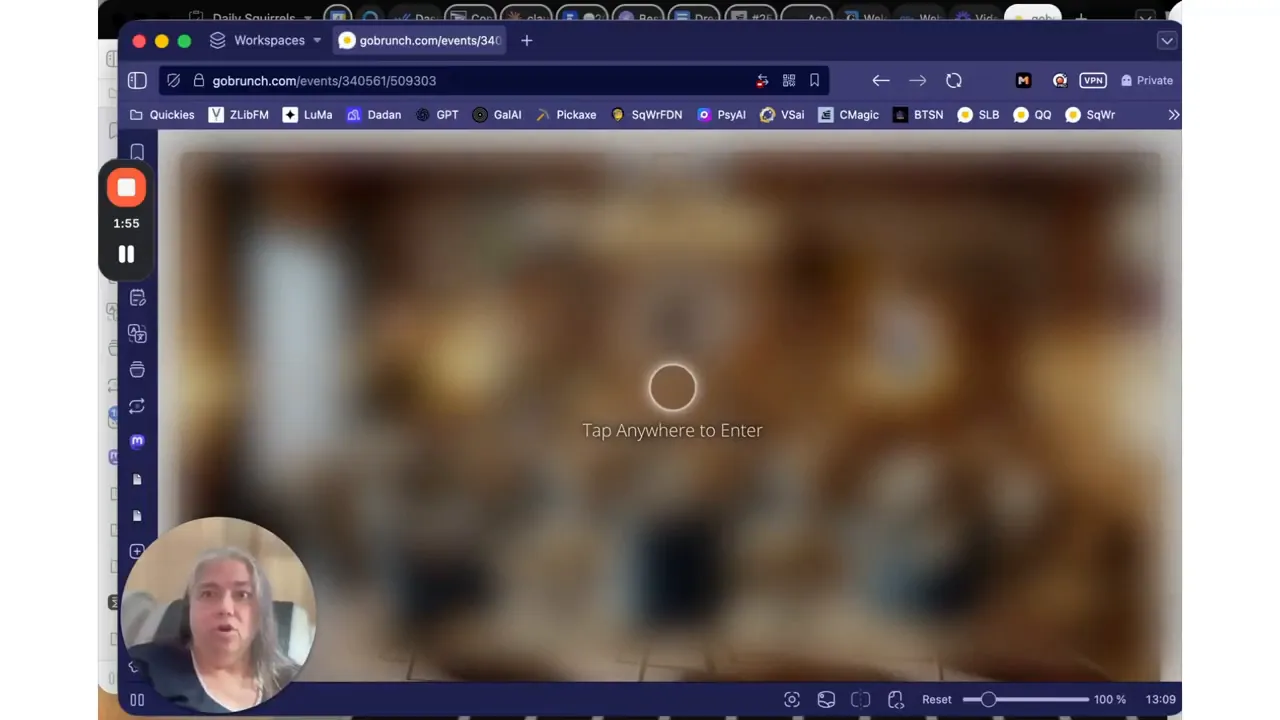
When everything looks good, click the button to join. On some screens the prompt may say “Join Room,” “I’m ready,” or even “Tap anywhere to enter.” Just click (or tap) as instructed and you’ll enter the virtual room. In my own demonstrations, I sometimes see the microphone prompt appear before or after clicking to enter — either sequence is normal. If the browser asks again for microphone access, click Allow.
Note: you might see yourself twice in the room preview (I do this sometimes when I’m both the host and a participant during demos). If you’re a host, you’ll often see a host tile and your participant avatar — don’t worry, it’s normal.
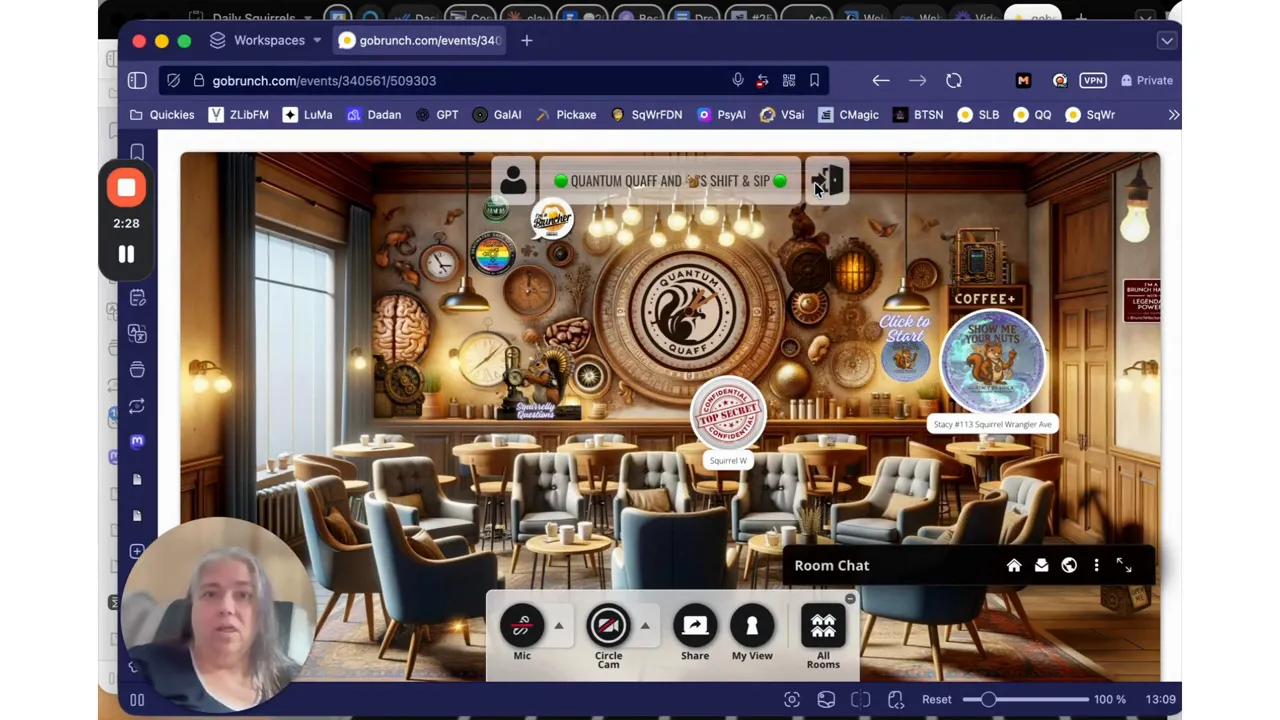
🪑 Moving Around — Avatars, Bubbles, and Proximity Audio
Once you’re in the room you’ll notice the virtual space with people represented as avatars and/or video tiles. The room often shows little bubbles or zones where people can sit. When you hover your mouse over these bubbles, your cursor will change and you can click to move your avatar. It’s like walking across a physical room:
- Move closer to a speaker or a small group to hear them better.
- Sit farther away to reduce volume or join a different conversation.
- Use the room layout to find quiet corners, main-stage areas, or breakout clusters — depending on how the host sets things up.
This proximity-based audio is one of the features that makes GoBrunch feel social. When you literally move closer to someone, their audio gets louder. It’s an intuitive way to recreate mingling that happens in real meetups.
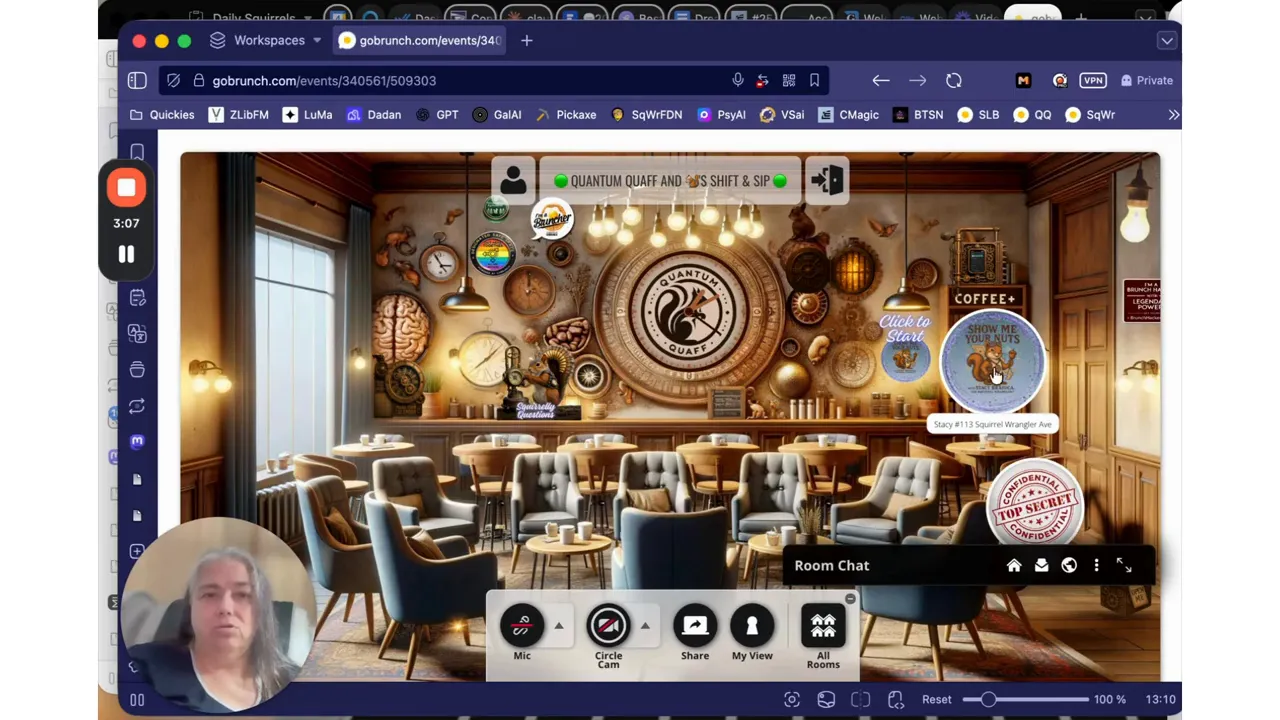
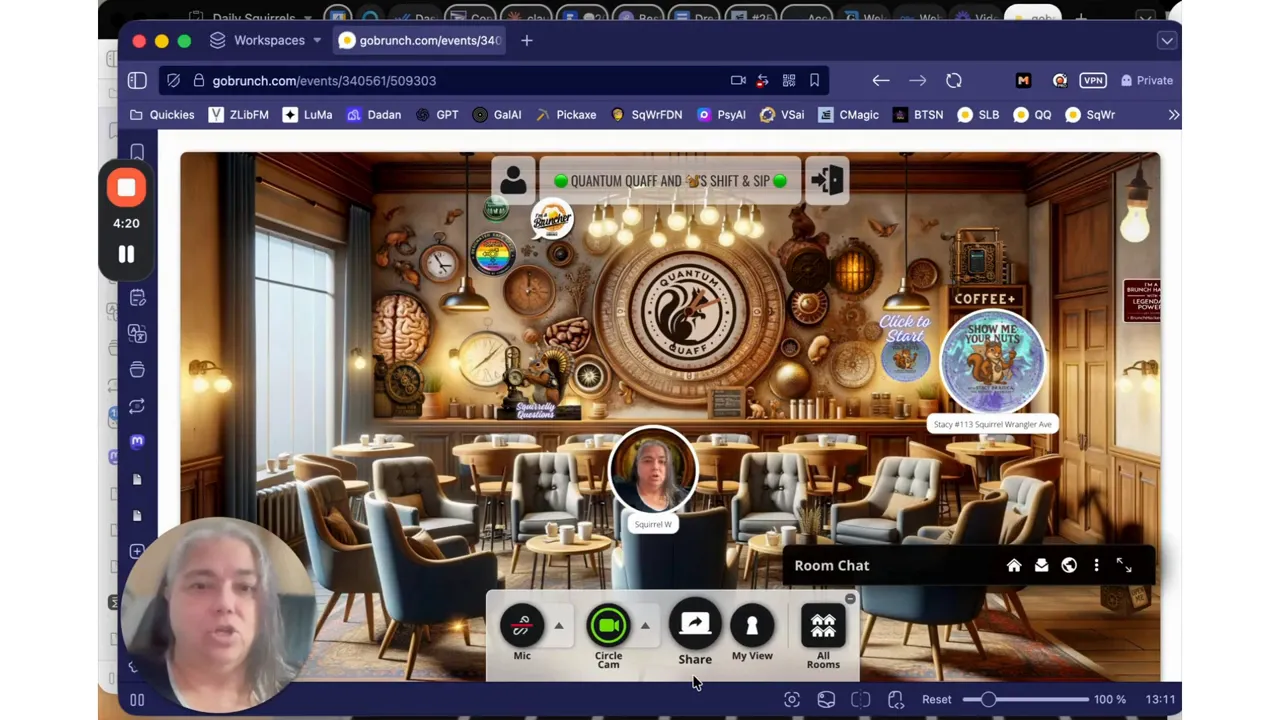
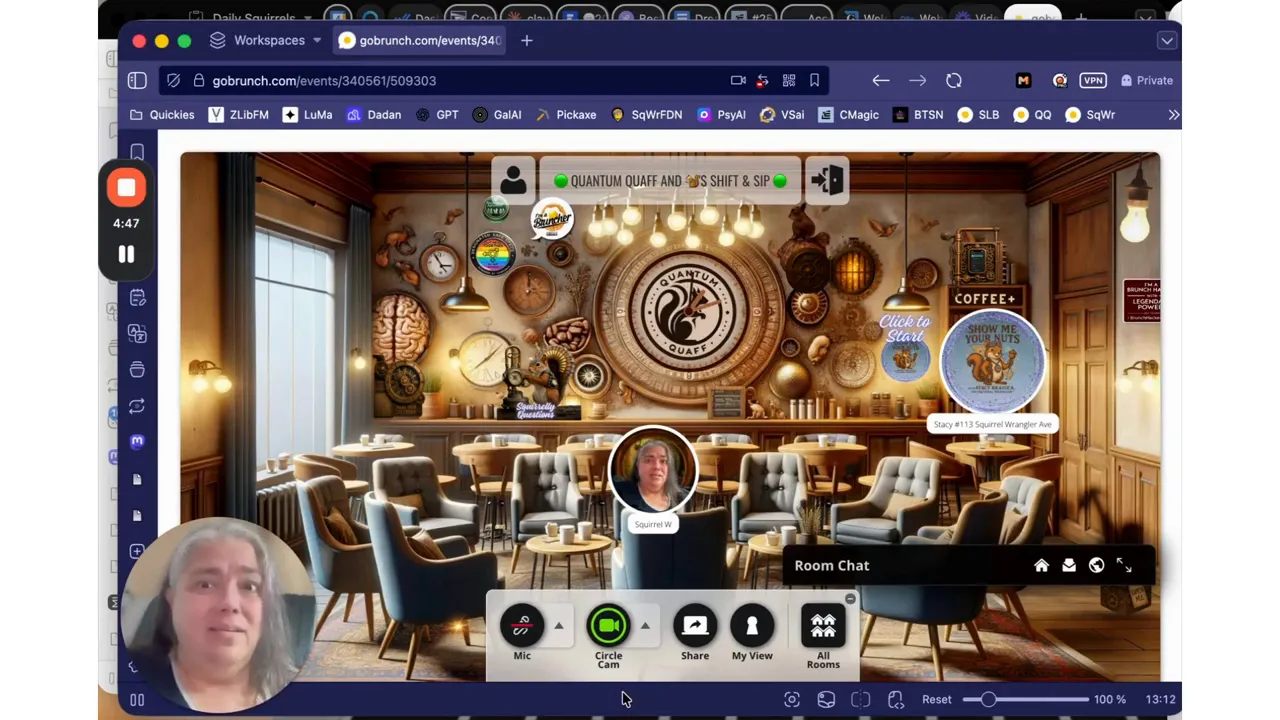
🛠️ Controls at the Bottom — Mute, Camera, Mic Test
Your main controls are located at the bottom of the screen. Depending on how the room is configured by the host, your available options may include:
- Mute / Unmute microphone: Click to toggle your mic on and off.
- Camera on / off: Turn your circle camera on to show a live video tile of yourself.
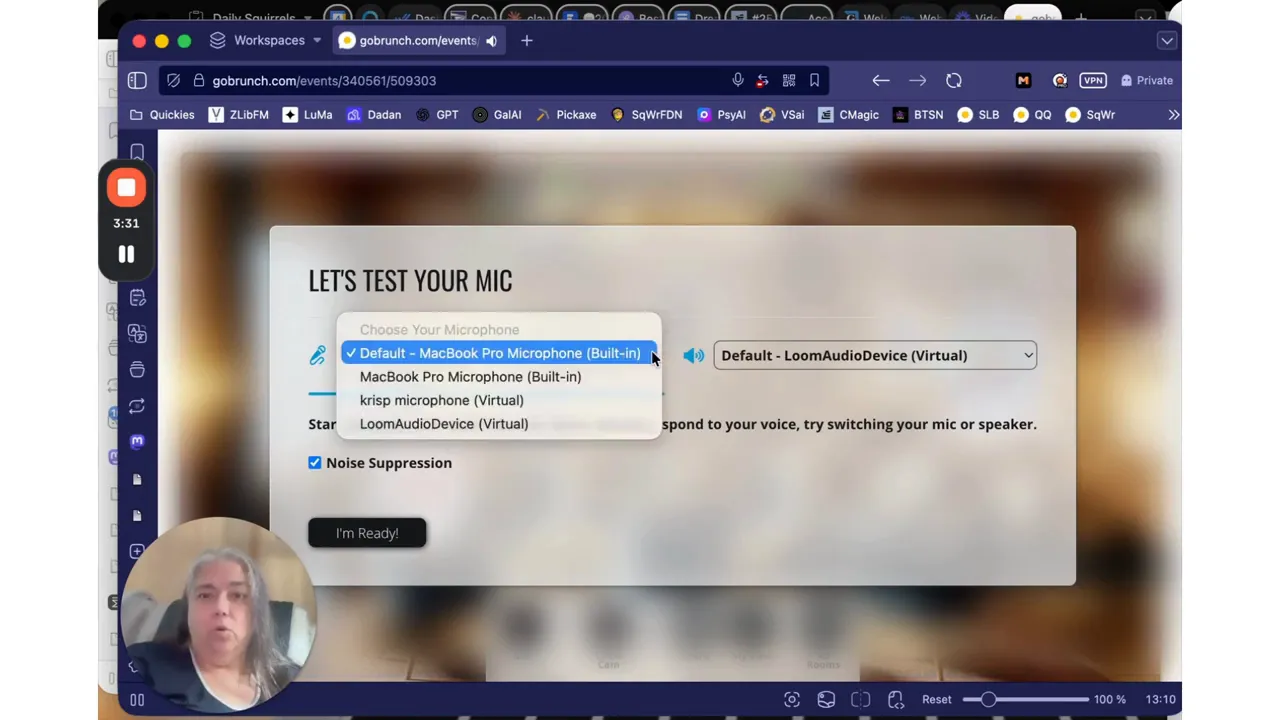
- Mic test (up arrow): An up arrow or similar control often reveals a test function to check which microphone is selected and whether it’s working.
- I'm ready / Join button: Confirms you’re ready to participate.
When I’m hosting workshops, I encourage attendees to mute when not speaking to reduce background noise — and to unmute when they want to participate. If you hear feedback, mute yourself until it’s needed. If your mic is muted but you need to speak, use the control at the bottom to unmute and talk.
📷 Circle Cam vs. Cam — What’s the Difference?
You might see a label such as “circle cam” or just “cam” next to your video. The interface differentiates between a small circular video tile (circle cam) and a larger camera feed (cam). What appears and what you can use depends on room settings and the room owner’s preferences.
Practical notes:
- Circle cam: A compact video view that sits within your avatar seat — great for casual mingling, informal meetups, and when you don’t want a large tile on the main stage.
- Cam: A larger video feed used for main-stage presentations or when the host allows cameras to be spotlighted.
When you switch your camera on, the browser will ask permission and the view you choose will appear accordingly. If you don’t see the camera option, the room owner may have disabled camera streaming for participants.
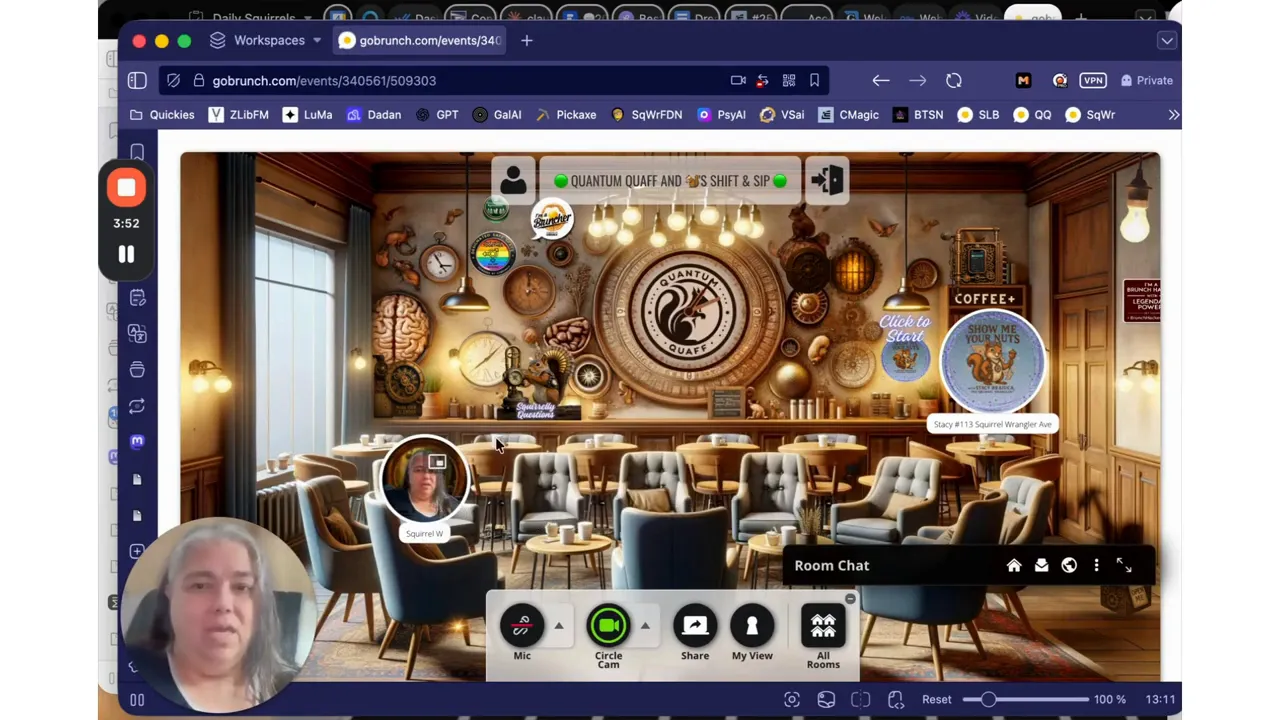
⚙️ Room Setup Variations — What the Host Controls
Every GoBrunch room can be configured differently by the person who created it. As a result, your available features may vary. Room owners can enable or disable:
- Participant cameras
- Screen sharing
- Access to different rooms or breakout areas
- Chat functionality
- Recording or spotlighting features
If something you expect is missing — like screen sharing or chat — it may simply be turned off by the host. Don’t panic: use the chat (if available) to ask for help, or message the host outside the room if you need a specific feature enabled.
☕ Etiquette & Best Practices — How to Make the Most of GoBrunch
Virtual spaces are still social places. Here are a few etiquette tips I recommend and use when I’m hosting coffee chats and events:
- Join a few minutes early to test audio, camera, and lighting.
- Use your name and a clear avatar so people can recognize you.
- Mute when you’re not speaking to reduce background noise.
- If you’re having technical trouble, use chat to ask for help rather than interrupting the main speaker.
- Move closer to a conversation if you want to join — proximity matters and is how you naturally engage.
- Be mindful of others: avoid loud music or chaotic backgrounds when you’re on camera.
When I host a room, I like attendees to feel safe trying things — if they make a mistake, no big deal. Try switching your camera on and off, click around to explore, and if you get lost, send me a message or hop into the room a few minutes early next time.
🩺 Troubleshooting — Common Problems and Quick Fixes
Even with everything set up, tech gremlins happen. Here are the most common issues people run into and how to fix them quickly:
- Mic not working:
- Check that you allowed microphone access in the browser.
- Use the mic test/up arrow control to switch to the correct microphone (headset vs built-in).
- Try refreshing the page and rejoining the room.
- Camera disabled:
- Confirm camera permission in the browser dialog or browser settings.
- If the host disabled participant cameras, message the host to request camera access if needed.
- Feedback or echo:
- Use headphones to prevent speaker-microphone feedback.
- Mute when you’re not speaking.
- Cannot enter the room:
- Check the invitation link is complete and not broken by email clients.
- Try another browser (Chrome, Edge, Firefox are commonly supported).
- Ensure any ad-blockers or privacy extensions aren’t blocking the GoBrunch scripts.
- Don't see chat or screen share:
- These features might be turned off by the host; ask them if you need access.
If you get stuck, it’s always okay to send a quick message in chat or contact the host ahead of time. Hosts appreciate attendees who come prepared and will often hold a few minutes for late joiners.
🔁 Quick Step-by-Step Summary
One-page checklist to follow right before joining any GoBrunch room:
- Open the invitation link in your email (look for the egg icon).
- Allow your browser to use the camera and microphone when prompted.
- Type the display name you’d like others to see and pick an avatar.
- Check lighting and watch the mic sound waves to confirm audio is working.
- Click “Join Room,” “I'm ready,” or “Tap anywhere to enter.”
- Use the bottom controls to mute/unmute and toggle camera.
- Move your avatar closer to people to join conversations — proximity matters.
📣 Join Me for Coffee — Events & Resources
If you'd like to see the exact room I use for coffee chats, I host weekly get-togethers. Come have coffee with me on Thursdays: stacypoka.com/events. If you'd like to connect further, visit stacybraiuca.com/connect. I also offer a free Big7 Course and free consultation bookings at stacybraiuca.com/uyp and stacybraiuca.com/book respectively.
When you come to coffee, try arriving five minutes early to test your mic and camera. I’m usually sitting in a room labeled with playful names — if you see squirrels, you’re in the right place.
❓ FAQ — Frequently Asked Questions
How do I know if my microphone is working?
If you see moving sound waves or a volume meter while you speak during the pre-join preview, your mic is detecting audio. You can also use the mic test (often an arrow or up-arrow control near the mic icon) to switch between audio devices and confirm which mic is active.
Do I need to download anything?
No. GoBrunch runs directly in your browser. Click the invitation link and everything loads. If a browser asks you to download something, that’s likely unrelated or a browser extension prompt — stick to the direct link you received in your invitation.
Can I join from my phone?
Yes. GoBrunch works on phones, but for the best view consider rotating your phone to landscape mode. All features work on mobile, although some room owners may limit camera or screen-sharing functionality.
Why don’t I see the camera option?
The host can disable participant cameras. If it’s important to you to share video, message the host or request camera access in the chat.
What is “proximity” and why does it matter?
Proximity means the closer your avatar is to someone in the virtual room, the louder and clearer their audio becomes for you. Moving your avatar closer is the virtual equivalent of walking over to a conversation at an in-person event. It’s a natural and fun way to create small-group interactions.
What should I do if I hear feedback?
Put on headphones, mute when not speaking, and check your microphone settings. If you are using external speakers while appearing on camera, the speaker’s sound may be picked up by your mic, causing an echo loop.
Can I share my screen?
Only if the room owner enables screen sharing. If you need to present, ask the host to allow screen sharing or invite you as a co-host.
Can the host see or record me?
Hosts may have recording enabled in some rooms. If you have privacy concerns, ask the host or check the room description before joining. Use the camera toggle to remain off-camera if you prefer.
🤝 Final Thoughts — Get In, Explore, Connect
GoBrunch is built to be simple and social. Click the invitation link, allow camera and mic access, choose a name and avatar, and step into the room. Move around, find a conversation, and enjoy the proximity-based magic that makes virtual mingling feel real.
If you’re joining one of my rooms, I promise a warm welcome, a few squirrels, and coffee. I love showing people around this virtual space and helping them feel confident using it. Come have coffee with me on Thursdays at stacybraiuca.com/events — I’ll save you a seat.
See you in the room!
Break up with Anxiety! |
|
Book a free Anxiety Busting Session with Stacy |
| Book Now |
This article was created from the video Presentation by Stacy Braiuca, 🐿 Squirrel Wrangler™ with the help of AI.


